
Secure Access
Secure access to screens and company data.
An administrator updates content across dozens of screens. An employee opens a payslip on a shared kiosk. Both need convenient access — with different permissions.
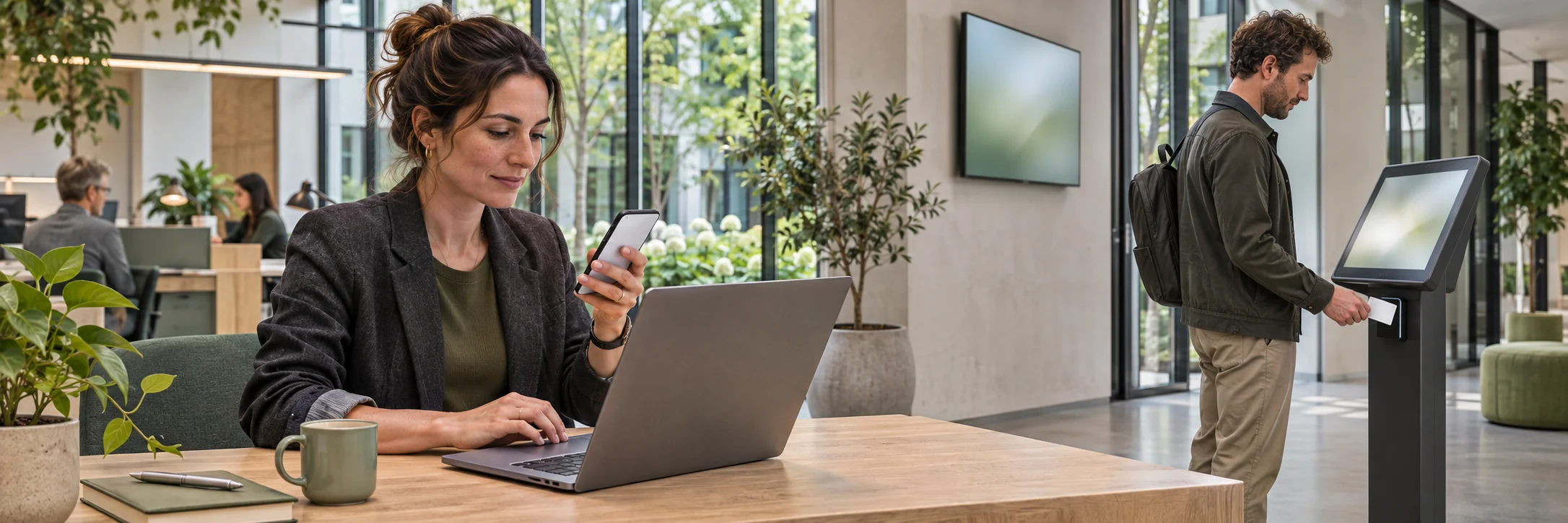
A valid account can be in the wrong hands.
Login credentials open the way to content and data. If someone else obtains them, they may be able to use the permissions the account already has. In digital signage, the consequences go beyond what a screen looks like: unauthorised access could alter operational messages or expose company information.
of the breaches analysed involved credential abuse at some point in the attack.Verizon · Data Breach Investigations Report 2026
Verizon DBIR 2026 counts credential abuse at any stage, not just initial access. The analysis on page 16 (Figure 11) covers 19,905 breaches, excluding the Error and Misuse categories.
The report covers cases from November 2024 to October 2025. These are contributed cases, not a representative sample of all organisations.
Open the Verizon DBIR 2026 report (PDF, page 16) Opens in a new tabSecure access brings three tasks together: verify the person, define their permissions and end access when it is no longer needed. They apply to managing screens as well as using internal applications.
Explore security features in DocsSign-in that fits your organisation.
Ki-Wi Signage CMS is the web application for managing content and devices. Users can sign in with their Google or Microsoft Entra ID identity. With single sign-on (SSO), they do not need a separate CMS password.
The choice should follow how the organisation manages identities. If centralised sign-in is already in place, the CMS can use it too. For accounts with their own password, 2FA adds another verification step: knowing the password alone is not enough.
Explore CMS sign-in options in DocsPermissions should follow a person's work.
Signing in verifies identity. Permissions determine what that person can do. Someone preparing content does not necessarily need to decide what appears on every screen. In the CMS, for example, the User role can prepare content but cannot send it to playback.
Accounts also need to reflect who still needs access. When someone joins, changes responsibilities or leaves, their access should change accordingly. Ki-Wi Signage supports SCIM, an interface that lets Microsoft Entra ID automatically create, update and deactivate CMS accounts.
This automation requires provisioning to be configured. New accounts receive the default role configured for provisioning. Roles and groups from the company directory are not imported into the CMS. The activity view helps identify who made recorded changes and when, including content deployments.
Connect account management with SCIM in DocsStart with three practical decisions.
How will people sign in? Choose a company identity or a password account with 2FA. For shared kiosks, also consider the cards in use and how the connected applications authenticate users.
Who can prepare, publish and administer? Assign roles around actual responsibilities. Decide who owns account changes and whether automated provisioning can handle them.
How will you check that access ends? Test both an employee leaving the company and people taking turns at a kiosk. Deactivating an account and ending a session are different scenarios — verify both.
How should secure access work for you?
We can review your sign-in, account management and shared kiosk access, then plan how they connect to your company systems.